

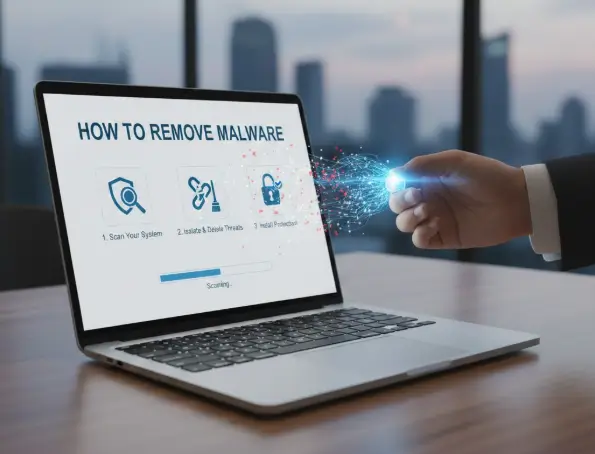
Malware infections on work PCs can disrupt productivity and threaten sensitive business data. Slow systems, unexpected pop-ups, or unauthorized file access are signs your PC may be compromised. Acting quickly is crucial because every minute of delay increases the risk of data loss or ransomware attacks. This guide shows how to remove malware safely without risking important files, using real-world strategies tested by professional IT services.
How to Know If Your PC Has a Virus
Detecting malware early can save your files and your business hours. Common signs include slow performance or frequent crashes, similar to common computer issues experienced by SMBs. Hidden malware may run quietly in the background, consuming CPU resources, slowing networks, or sending data without your knowledge. Check your task manager, browser extensions, and system logs to identify suspicious activity before taking action.
Types of Malware Affecting Work PCs
Understanding malware types helps you remove it effectively. Trojans can steal files or credentials, ransomware locks your data until a payment is made, spyware records your activities, adware bombards you with ads, and browser hijackers redirect your searches. Different malware types require different approaches: ransomware may need backup and isolation first, while trojans may be removed with antivirus or manual steps. Knowing the threat ensures you choose the safest removal method, or contact cybersecurity services for expert guidance.
Immediate Steps When Malware Is Suspected
Take quick action to protect your data. First, disconnect your computer from the network to prevent the malware from spreading. Next, backup your most critical files to an external drive or secure cloud. storage. Avoid clicking unknown links, opening suspicious files, or running untrusted programs. These steps reduce the risk of permanent data loss and prepare your PC for safe cleanup, supported by ITaaS solutions
Malware Removal Options
Using Trusted Antivirus Software
Professional antivirus tools are the fastest way to remove malware safely. Software like Malwarebytes, Bitdefender, and Kaspersky provide step-by-step scans, quarantine infected files, and remove threats without harming your data. Run a full system scan, follow the prompts carefully, and restart your computer afterward. Always ensure your antivirus definitions are up-to-date for maximum protection against the latest threats.
Manual Malware Removal
Sometimes automated tools cannot detect hidden malware. Manual removal can also help identify the processes causing why is computer slow issues You can also use Command Prompt virus scan commands to detect and delete malware files. For browser-based threats, clean your extensions, reset settings, and delete cache. Always back up files before making changes to avoid accidental data loss.
System Restore and Factory Reset
System restore can revert your PC to a clean state if malware has infected recent system files. Factory resets erase everything, so only use this as a last resort, and ensure all important files are backed up. These options are effective but require caution because improper use can cause data loss. Consider professional guidance if you are unsure or need advice on computer repair vs replacement guide
How to Remove Malware Without Losing Important Files
Prioritize file safety while removing malware. Start with a backup of all essential documents, spreadsheets, emails, and media files. Use antivirus software for initial scans, then check for remaining threats manually. Verify each step, including Safe Mode scans, browser cleanup, and system restore. After removal, restart your PC and confirm that files are intact. Keeping files secure throughout the process is the most critical part of malware removal.
Preventive Measures After Malware Removal
Prevention is better than cure. Keep your operating system and all software updated regularly. Schedule periodic full system scans using trusted antivirus tools. Educate employees about phishing emails, unsafe downloads, and suspicious links, as human error is often the main cause of infections. Limit administrator privileges, and use strong passwords to reduce the risk of future infections. A proactive approach ensures malware incidents do not disrupt your business again.
Recommended Tools and Resources
Choosing the right tools makes malware removal safer and faster.
- Malwarebytes: excellent for real-time malware detection and removal.
- Bitdefender: strong antivirus with ransomware protection.
- Kaspersky: effective against a wide range of malware types.
Free tools can help with browser malware, but professional software ensures thorough cleaning. Always download from official sources, and verify software integrity to avoid fake antivirus scams.
Objections and Common Concerns
Many SMB owners worry about losing files during malware removal. Professional antivirus tools and careful manual steps protect your data, even if the malware is aggressive. Questions like “Will a factory reset delete my files?” or “Can I remove malware without antivirus?” are valid. The answer is yes, but it requires careful backup and technical knowledge. When in doubt, professional IT support ensures safe removal without data loss.
Post-Cleanup Verification
After removing malware, confirm your PC is clean. Check CPU usage, system logs, and browser behavior. Run another antivirus scan to ensure no residual threats remain. Test key files to confirm integrity. This step prevents reinfection and ensures your business can continue without interruption.
FAQs
Use trusted antivirus software like Malwarebytes or Bitdefender for a full scan. Backup your important files first, then follow removal steps carefully. For stubborn malware, Safe Mode scans or professional IT support can ensure your computer is fully clean without risking data loss.
Look for signs like slow performance, pop-ups, unknown programs, or browser redirects. Run a full system scan with updated antivirus software. Check your task manager and system logs for unusual activity. Early detection protects your files and prevents serious issues.
Hidden malware often runs silently. Check CPU and network usage, unknown background processes, and unexpected browser behavior. Use professional scanning tools or Command Prompt scans to detect threats. Combining software and manual checks ensures even stealthy malware is caught.
A reset can remove many threats, but it may also erase your files. Back up everything first. Some advanced malware can survive resets, so combining antivirus scans, system restore, and professional checks is the safest approach.
Slow performance or frequent crashes.
Pop-ups, browser redirects, or unknown programs.
Unexpected network activity or suspicious file changes.
Recognizing these early prevents data loss and system damage
Yes, free antivirus tools or built-in OS scanners can help. However, they may not detect all threats. Professional antivirus or IT support ensures complete removal safely, especially for work PCs with important files.
Signs include strange account activity, unauthorized logins, changed passwords, or unusual network traffic. Malware infections can also indicate hacking attempts. Regular monitoring, antivirus scans, and secure passwords help identify and stop intrusions quickly.
Conclusion
Malware removal from work PCs doesn’t have to risk your important files. By detecting threats early, using professional tools, and following safe backup strategies, you can clean your PC efficiently. Combine this with preventive measures like software updates, employee training, and secure browsing habits. For businesses unsure about handling malware themselves, contacting professional IT services ensures safety, reliability, and peace of mind.